Hello folks, Daithí here!
One of the most difficult things that we’ll have to deal with during the time of this COVID-19
pandemic is a lack of social contact.
Thankfully, our Lord who provides for us in all things has provided us with lots of great technology
that we can use to remain in contact with each other as a church family.
One particular technology that we at Drung Group of Parishes will be using a great deal over this lockdown
period will be Zoom. So it’s important that we’re all able to use it!
What is Zoom?
Zoom is a software available on all computers and smart mobile devices that allows us to have
video meetings. We’ll call these ‘Zoom meetings’. This is like a conference call, with multiple
participants, but all the participants are also able to see each other (given the permission of and
technology available to each individual). These video meetings are helpful for virtually replicating
things like our Wednesday evening prayer meetings and Bible studies, Teens For Christ and
InTouch. The ideal, of course, is for all of us to be able to meet face-to-face. But for now, using
Zoom is the closest thing we have.
What do I need at my disposal in order to use Zoom?
To join in our church events over Zoom, you will need at least one of these three:
• A regular landline phone or regular mobile phone
• A laptop or computer
• A smartphone
If you are using a smartphone or a computer, you will need an internet connection for either of
these devices to use Zoom. If you’re going to use a computer/laptop, it will be need to be one
with an in-built camera or you’ll need a webcam.
So how do I use Zoom to take part in our virtual church meetings?
Zoom is an easy-to-use software. There are lots of helpful online videos and tutorial blogs that
have been written by people who are much more tech savvy than I that can show you all the ins
and outs of Zoom:
– Zoom Help Website
– Zoom Website Tutorial Videos
My guess is that if you are able to use a computer/smartphone well enough to watch those videos
and read these blogs, you’ll be well able for using Zoom without any of my help!
The purpose of this blog on our church website is for those in our parish for whom computer skills
do not come easily. We want to keep in touch with everyone in our church family, not just the
technologically literate. If you are reading this and you know someone who’s finding it difficult to
get going with Zoom, please do help them get access to this blog.
In this blog I’ll aim to show the most simple way to join in with one of our virtual church Zoom
meetings. (You will not need to make a Zoom account.)
Basic component of a Zoom meeting:
One thing you’ll need to know about these Zoom meetings is that they each have a unique
‘Meeting ID’.
This is a unique nine-digit number and is like a password or invitation that you will need to gain
access to the meeting.
Before one of our virtual church meetings starts, Rev’d. Nick will send out the time of the meeting
and Meeting ID that you need to gain access to that particular Zoom meeting.
Take this for an example:
You may get a text that looks like this (or an email with the exact same content):

From this we can see that the Bible study today will take place at 7pm and the Meeting ID is
123-456-789. We also have that link <https://us04web.zoom.us/j/123456789>
Once you get the Meeting ID from Nick, please do not share it with someone outside of the
church who is not going to join. Zoom is a good resource, but as with anything else, these social
networking technologies can come with their own dangers. Keeping our Meeting IDs to ourselves
keeps all of our information and online data more secure.
Joining a meeting by telephone only:
By using this method of joining a Zoom meeting, you of course won’t be able to see anyone and
we won’t be able to see you. But you’ll still be able to take part in all the conversation.
First, you need to call the Zoom landline number on your telephone. This is a number like any
other phone number that you might normally call.
For those calling from the Republic of Ireland, this number is: 01 536 9320
For those calling from Northern Ireland, this number is: 0208 080 6591
Once you’ve called this number, you will be asked to input the Meeting ID into the dial pad
followed by ‘#’
For our example, you would type ‘123456789’ and then ‘#’
You will then be to enter your ‘Participant ID’ if you have one. However, for our purposes at Drung
Group, you will not need a Participant ID. Instead just press ‘#’ again.
After this, you’ll be brought in to the group call and taking part in our virtual church meeting!
If for any reason, you’d like to mute yourself in the meeting at any time, you can press ‘* 6’.
Pressing ‘*6’ again will unmute yourself.
Joining a meeting by computer:
To use Zoom on your computer, it is best to download the Zoom application.
To do this, first follow the link that came with your Zoom meeting invite.
For our example case, you would click on the link, https://us04web.zoom.us/j/123456789
Alternatively, you can go to https://zoom.us/join. Then type in the Meeting ID in the given window.
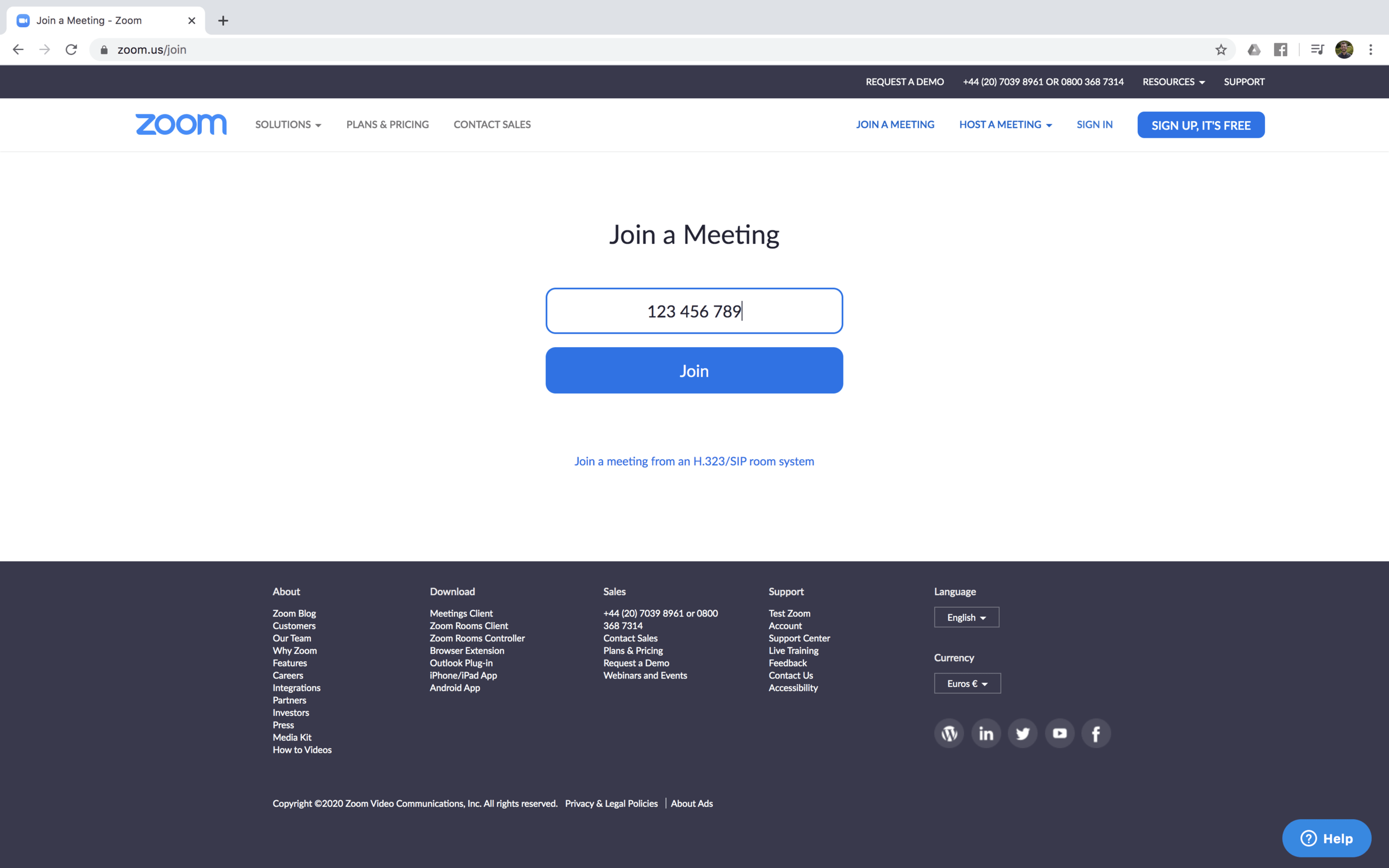
When you click the link from the invitation or click the blue ‘Join’ button after typing in the
Meeting ID, you will be prompted to download the Zoom application to you computer. Go ahead
and download the application to your computer, following the steps as that your computer gives.
This is a simple process but it may take some time to download the application depending on
your internet speed.
Once you have the Zoom application on your computer, you can open it.
The following screen will come up:
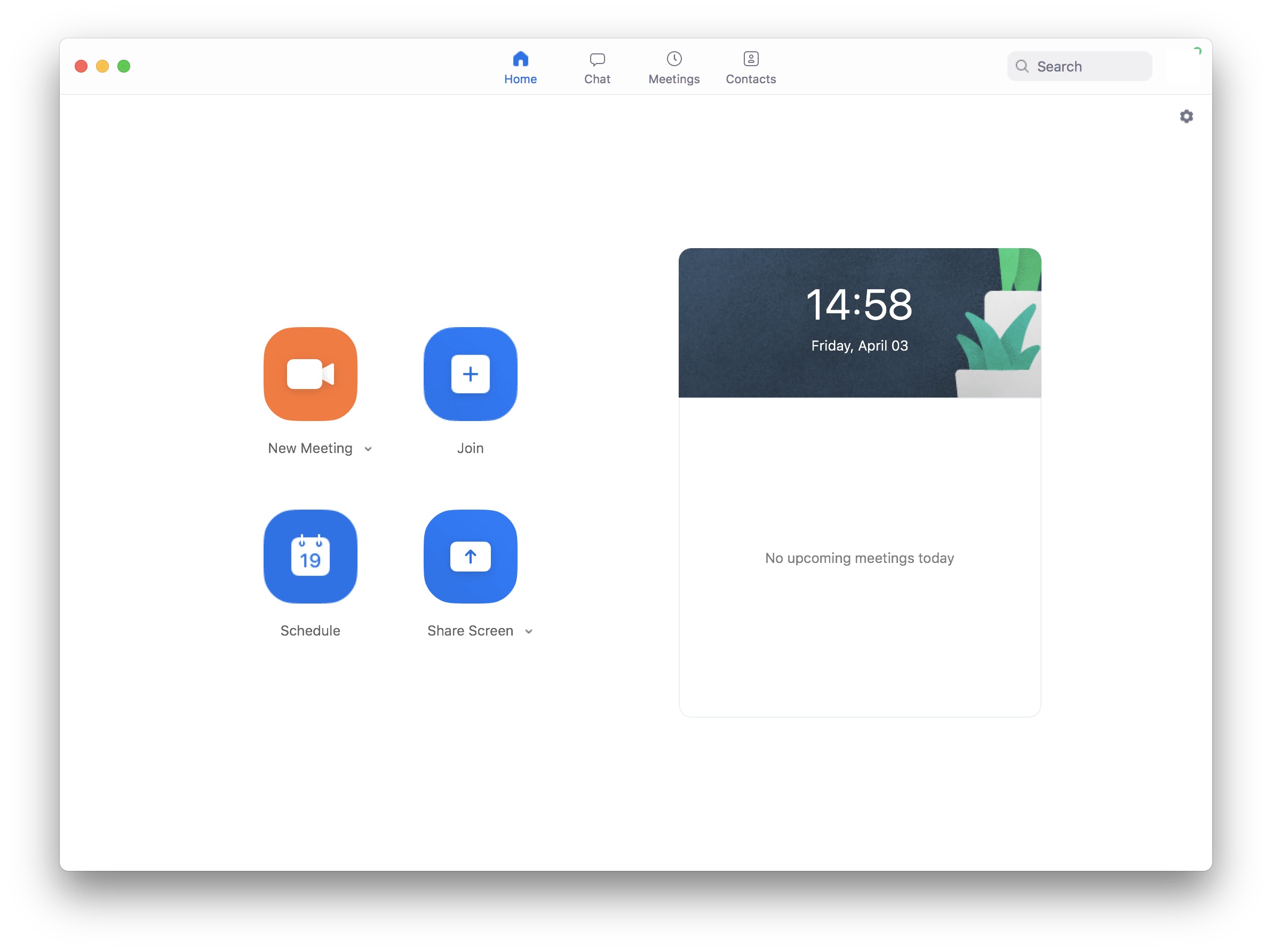
Click the ‘Join’ button, and enter the Meeting ID as prompted.
This is what that will look like for our example:
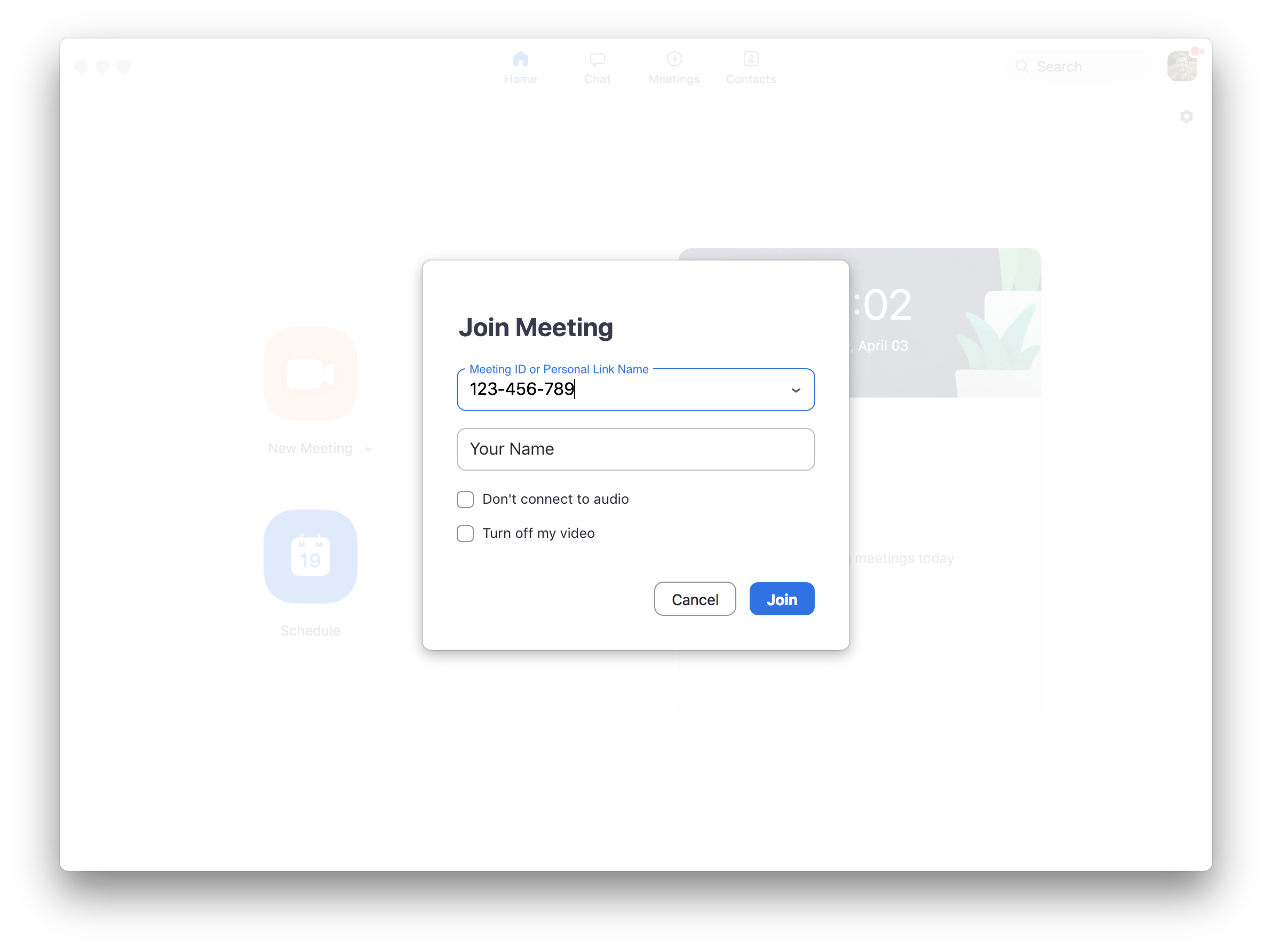
Click the join button and accept the requests to use your webcam (if you have one) and your
audio. And that’s you!
Joining a meeting by smartphone:
Joining our Zoom meetings by smartphone is a similar process to using your computer.
On your smartphone, open up your App downloader (App Store or Play Store etc.) and search for
Zoom and install it.
Then, press the ‘Join’ button, type in the Meeting ID and press ‘Join Meeting’.
This is what that will look like for our example:
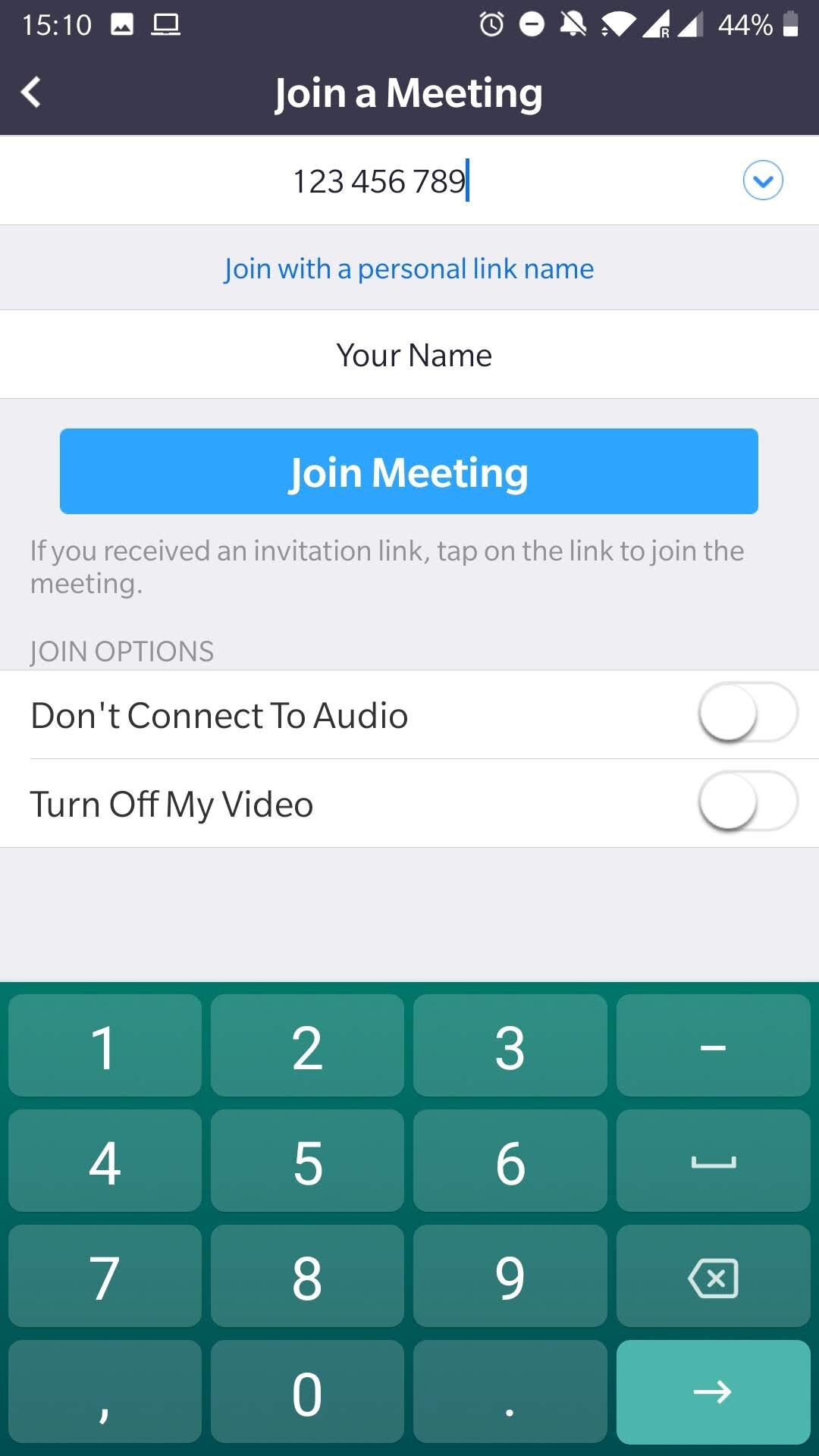
You may need to allow the Zoom app permission to use your in-built microphone and camera.
Accepting these permissions allows us to see and hear you.
After this, that’s you ready to go!
That’s all!
If you’re still finding it difficult to use Zoom, that’s okay! Please let us know and we can talk you
through it on the phone.
 Light and Momentary Troubles
Leave a comment